
Create the world.
Build the app around it.
Create images, video, music, effects and narration in focused canisters. Connect the selected assets to screens and flows, build the app with your AI engineer, and compare it across devices.
Think in screens.
Design in connections.
Describe your idea, then shape it visually. Edit a flowchart, arrange a screen and attach the media it uses. Your AI engineer builds from the design you accept.
Ocean Atlas · Design canvasInteractive product illustration
Proposed change: add a Help screen
Keep your existing screens and labels. Add a Help destination connected to the lesson.
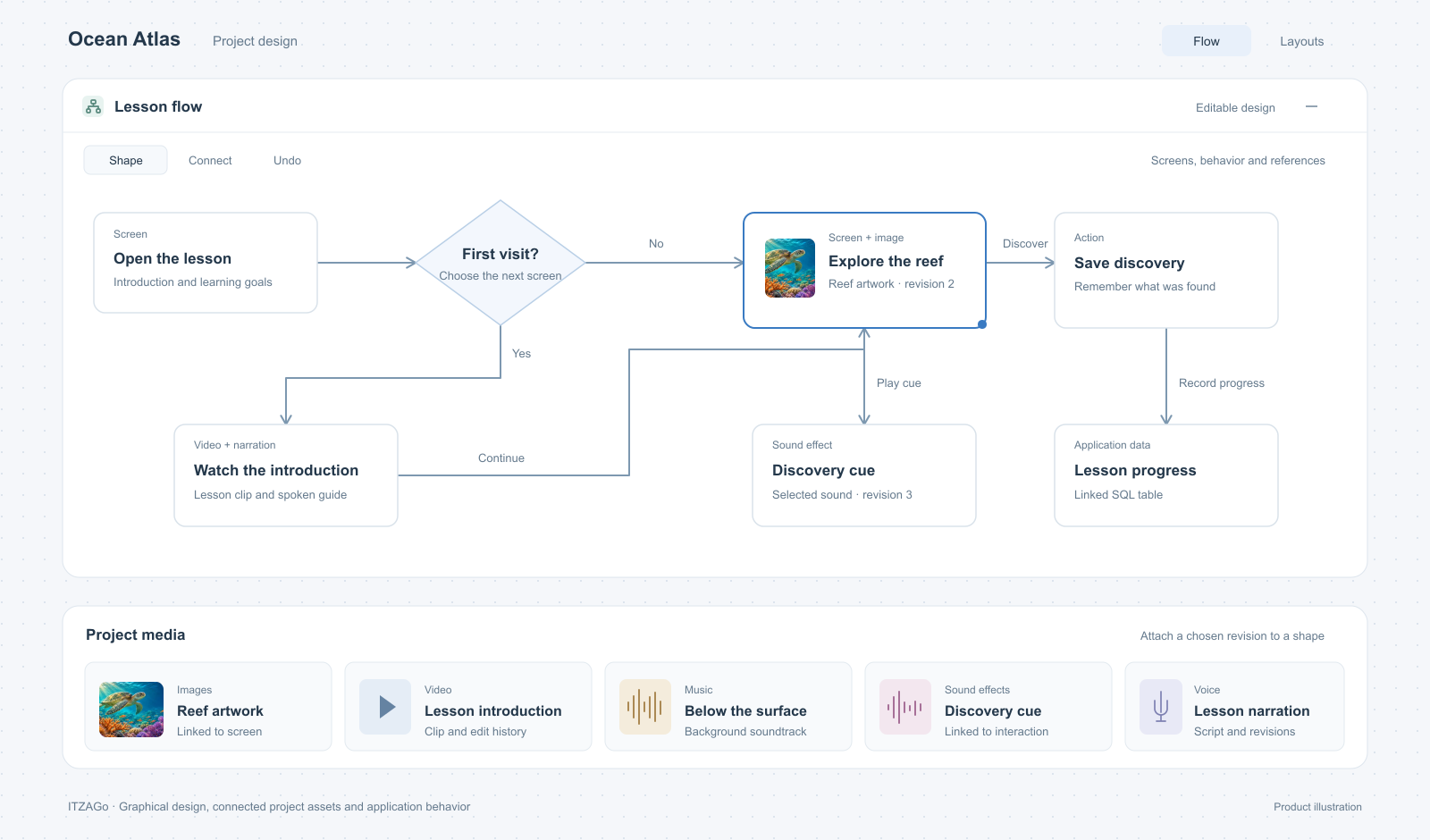
Screen shapes and decision branches describe behavior. Media and data nodes carry the references behind it.
Reef explorers
A living neighbourhood.
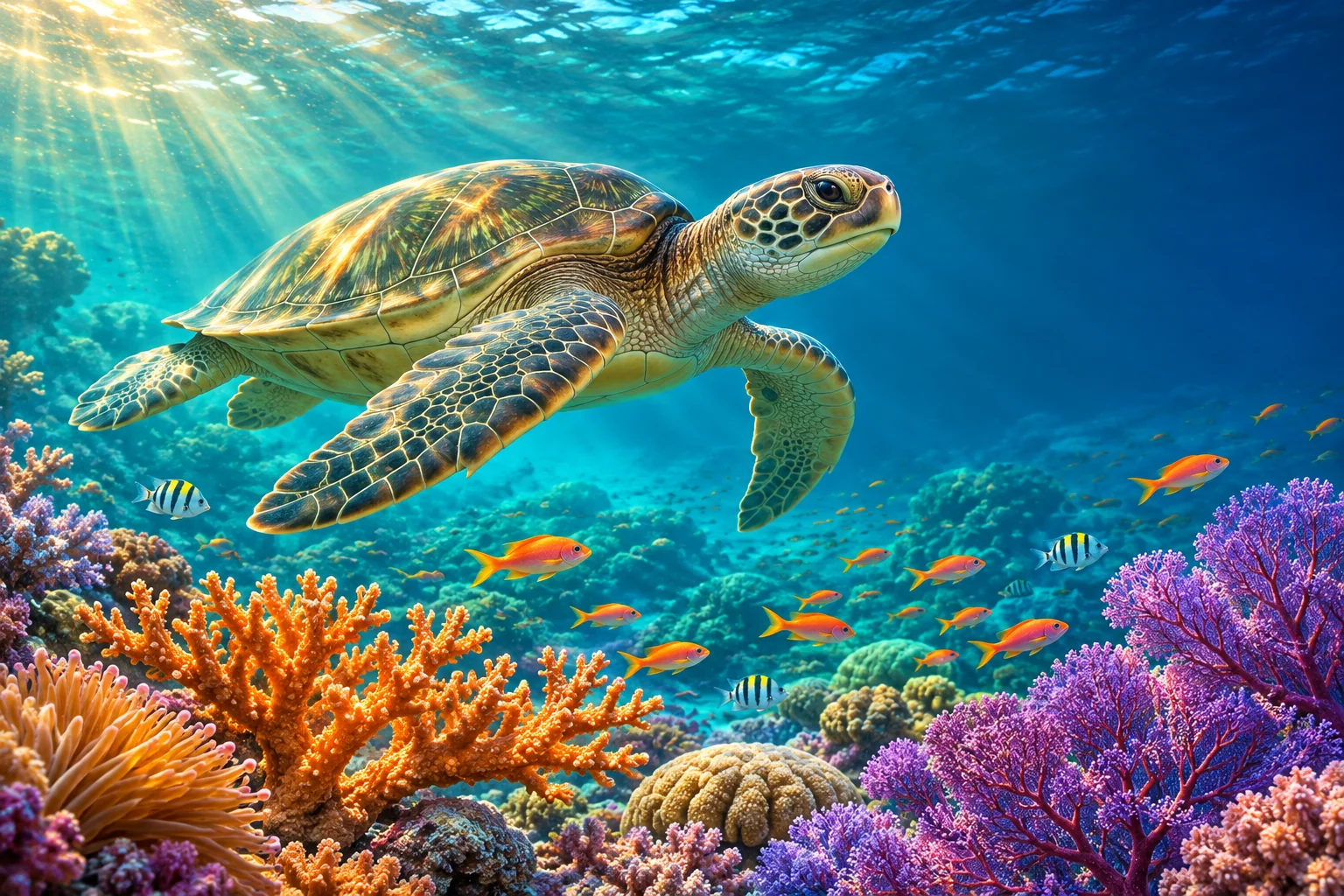
Follow the turtle. Discover the connections that keep a reef alive.
Explore the reefInspect screens, layouts, diagrams, schemas, connectors and workflows together. Missing destinations should become decisions, not surprises in the build.
Reef explorers
A living neighbourhood.
Follow the turtle. Discover the connections that keep a reef alive.
Explore the reefReef explorers
A living neighbourhood.
Follow the turtle. Discover the connections that keep a reef alive.
Explore the reefAI proposes. You decide.
Review proposed graph and layout changes before adoption. Keep manual work, undo an edit and choose the plans and references that enter the accepted instructions.
Layouts and flows work together.
A screen plan defines purpose, actions, states, data and completion criteria. A layout defines placement. A behavior flow defines what happens next.
The design becomes build context.
Accept a retained Markdown brief with your decisions. Development gets the agreed direction in its own conversation, with real source and follow-up context.
Ocean AtlasA media-rich learning app
Interactive product illustration
ImagesProject assets
Reef world · artwork reference
Asset referenceLesson screen
Device previewOcean Atlas
Ocean AtlasExplore the reef
Explore the habitat
Meet the reef.
Follow a sea turtle through a world of coral, colour and life.
What can you discover?
Coral creates shelter for fish and many other animals. A healthy reef is a connected community.
Give the world its character.
Create the lesson cover, explore candidates and refine the chosen image. Retain its revisions, then reference it from the lesson screen.
VideoProject assets
Reef introduction · lesson clip
Asset referenceLesson screen
Device previewOcean Atlas
Ocean AtlasExplore the reef
Watch the lesson
A closer look.
Bring the world into focus before exploring it. Play the sample lesson clip above.
Show how the story moves.
Create and review a lesson video in its own canister. Keep the selected clip linked to the screen that uses it, with edits and context close by.
MusicProject assets
Ocean AtlasBelow the surfaceAmbient learning soundtrack
Soundtrack · selected reference
Asset referenceLesson screen
Device previewOcean Atlas
Ocean AtlasExplore the reef
Set the atmosphere
Explore at your pace.
A gentle soundtrack gives the lesson a sense of place.
Create a soundtrack for the experience.
Shape the mood in Music. Generate, listen, describe an edit and retain revisions. Reuse the selected track wherever the app needs it.
Sound effectsProject assets
Discovery cue
Sound effect · discovery event
Asset referenceLesson screen
Device previewOcean Atlas
Ocean AtlasExplore the reef
Connect sound to behavior
You found the turtle.
Press the button to hear the discovery cue.
Make every action feel intentional.
Work on short, specific sounds in Sound effects. Preview candidates, refine timing and connect the chosen sound to a discovery, interaction or reward.
Voice & narrationProject assets
Lesson narration
“A coral reef is a living neighborhood. Follow the sea turtle, explore the reef, and discover how its inhabitants depend on one another.”
Voice · opening explanation
Asset referenceLesson screen
Device previewOcean Atlas
Ocean AtlasExplore the reef
Listen and explore
A living neighborhood.
Spoken explanations bring another way to learn.
Give the lesson a voice.
Create and refine spoken explanations in Voice & narration. Keep the script, audio and chosen revisions together, then attach the narration to its lesson.
Explore a representative app made from artwork, a motion clip and audio samples. This product illustration shows how media fits the workspace; it is not a live generation session. Playback starts only when you choose it.
Make the asset.
Keep its context.
Use it in the app.
Images, Video, Music, Sound effects and Voice & narration are focused workspaces. Each has its own controls, candidates, conversation and revisions.
Create & choose
Prompt in the appropriate canister. Browse lightweight candidates, open the original and preview or play what you are choosing.
Refine & retain
Describe an edit with the original context preserved. Keep revisions and choose the version that belongs in this project.
Connect & build
Attach the chosen asset by reference to a screen or editable flow. Your AI engineer uses it in the actual app, alongside behavior and data.
A workspace that
remembers your thinking.
Keep planning, media, source and device views open together. Every project restores its own camera, arrangement, conversations and references.
ProjectsOcean AtlasStudio ledgerMy shop
Planning · Design · Create · Build Panels can pin or auto-hide
Screen plan
Reef lesson
Purpose · Actions · States · DataImagesOriginal · contextual edit · revisions
Original · contextual edit · revisionsPreview feedback
Choose an element.
Request the change in context.
SourceMusicBrandDataChecks
Expanded windows and compact canisters keep separate positions.
Several views. One project.
Desktop, iPhone, Android and tablet canisters stay open together. Set custom dimensions, aspect and orientation; follow the latest release or pin a version.
Focused edits, retained originals.
Images, Video, Music, Sound effects and Voice have their own prompts, candidates and revisions. An edit starts with the original context. Asset Library reuses references across the project.
Room for the work that matters.
Minimize players and frames, browse lightweight thumbnails, and restore originals when needed. Authorized background work can continue. Floating panels reveal on edge hover or stay pinned with inset eye controls.
Keep the decisions
connected to the build.
The canvas joins creative direction, application behavior and delivery. Each tool keeps its own context while contributing to a shared project.
- Brand, content & translation
- Share theme settings, content keys and revision-aware translations. Choose Documents and Research deliberately for build context.
- Data, schemas & workflows
- Design linked tables and sample records alongside screens. Connect application data, services, agents and scheduled or record-triggered work.
- Templates you can edit
- Start with actual editable source and retained versions. Shared settings change colour, type, spacing, corners, copy and layout without unnecessary AI generation.
- Behavior checked before release
- Run saved behavioral and browser checks. Failed work preserves the working release; bounded repair uses failures without changing accepted criteria.
Accepted design → server-side source changes → compilation and checks → authorized ITZA delivery → confirmed device previews
Open the work.
Keep your place.
Pan and zoom across your canvas. Move and resize canisters, or minimize them into compact squares with a type icon and optional name label. Open and compact positions are saved separately.
A canvas per project
Vertical project tabs restore the camera, windows, conversations and references for that project. A new project starts with a clean workspace.
Controls that step aside
The project rail, toolbar and status area float as rounded surfaces. Their inset eye controls pin them open or let them slide away until you hover at the edge.
Keep the canvas light
Closing a canister releases mounted previews, players and unnecessary originals. Thumbnails and durable references keep assets close; authorized server work can continue.
Explain the result
before building it.
Planning turns an idea into a shared direction: audience, journeys, screens, behavior, constraints, data and success criteria. Accept the brief when it describes what you actually want.
- Screen plans
- Define what each screen does, its states and how you will know it works.
- Screen layouts
- Arrange elements and navigation to make the structure visible.
- Editable flows
- Add, remove and label vector shapes and connections. Link screens, decisions, data, media and libraries.
- References with context
- Attach existing assets by reference. Recognizable thumbnails open the original without making duplicate copies.
Reef lesson
- Purpose
- Explore a habitat through image, sound and discovery.
- Actions
- Open a lesson, play narration, answer a question.
- States
- New visitor · In progress · Completed
- Data
- Lesson reference, learner identity, saved progress.
- Completion criteria
- A returning learner can resume the lesson at their last saved step.
Focused tools.
Connected context.
Keep the conversation where the work happens. Choose the canisters your project needs, rather than forcing every task through one chat.
Make the idea clear before the AI builds it.
Use Planning to define your audience and outcomes. Screen plans capture actions, states and acceptance criteria. Arrange screen layouts and edit vector flows to show how screens, decisions and data connect.
- Planning
- Screen plans & layouts
- Diagrams
- Research & references
Give each medium its own working space.
Prompt, browse and revise inside Images. Music, sound effects, video and voice have their own conversations and controls. Keep writing, translations and documents close to the work they belong to.
- Images & video
- Music, effects & voice
- Written content & translations
- Documents & Asset Library
Work on the application behind the screen.
Development turns accepted instructions into changes to real source files. Bring in reusable components, define data and schemas, configure connections and set the project’s brand and theme.
- Development & Source code
- Application data & schemas
- Connectors & components
- Brand & theme
Keep the result, the checks and the history together.
Review testing and feedback, compare device previews, and follow activity and resources. Manage build instructions, AI and hosting, automations and access from focused canisters.
- Device previews
- Testing & feedback
- Activity & resources
- Agents, hosting & access
The build follows
the agreed instructions.
Accept the brief
Agree the screens, behavior, data and completion criteria. The accepted document goes to Development; the planning conversation stays separate.
Build from real source
The AI engineer changes project files on the server. Dependencies, compilation and execution run in an isolated sandbox, with progress and history in view.
Pass the saved checks
Delivery waits for your checks to pass. A bounded repair can address failures without changing the accepted checks. Failed work preserves the working release.
Confirm on ITZA
Authorize delivery to ITZA hosting. Once the release is confirmed, previews refresh. Follow-up changes start from retained source and accepted context.
Keys & access manages authorization. Private credentials are not ordinary canvas documents or project screenshots.
Compare devices.
Keep the version in view.
Open Desktop, Laptop, iPhone, Android phone, iPad or tablet views, or configure your own size. Use several canisters together, follow the latest release or pin a version.
Reef explorers
A living neighbourhood.
Follow the turtle. Discover the connections that keep a reef alive.
Explore the reefReef explorers
A living neighbourhood.
Follow the turtle. Discover the connections that keep a reef alive.
Explore the reefFrames and viewport presets help compare responsive web layouts. Selecting a device does not create a native app binary or emulate its operating system.